Cities
The Cities section allows administrators to manage geographic locations where real estate projects are available. Cities help users filter and discover projects based on their preferred locations.
Cities Overview
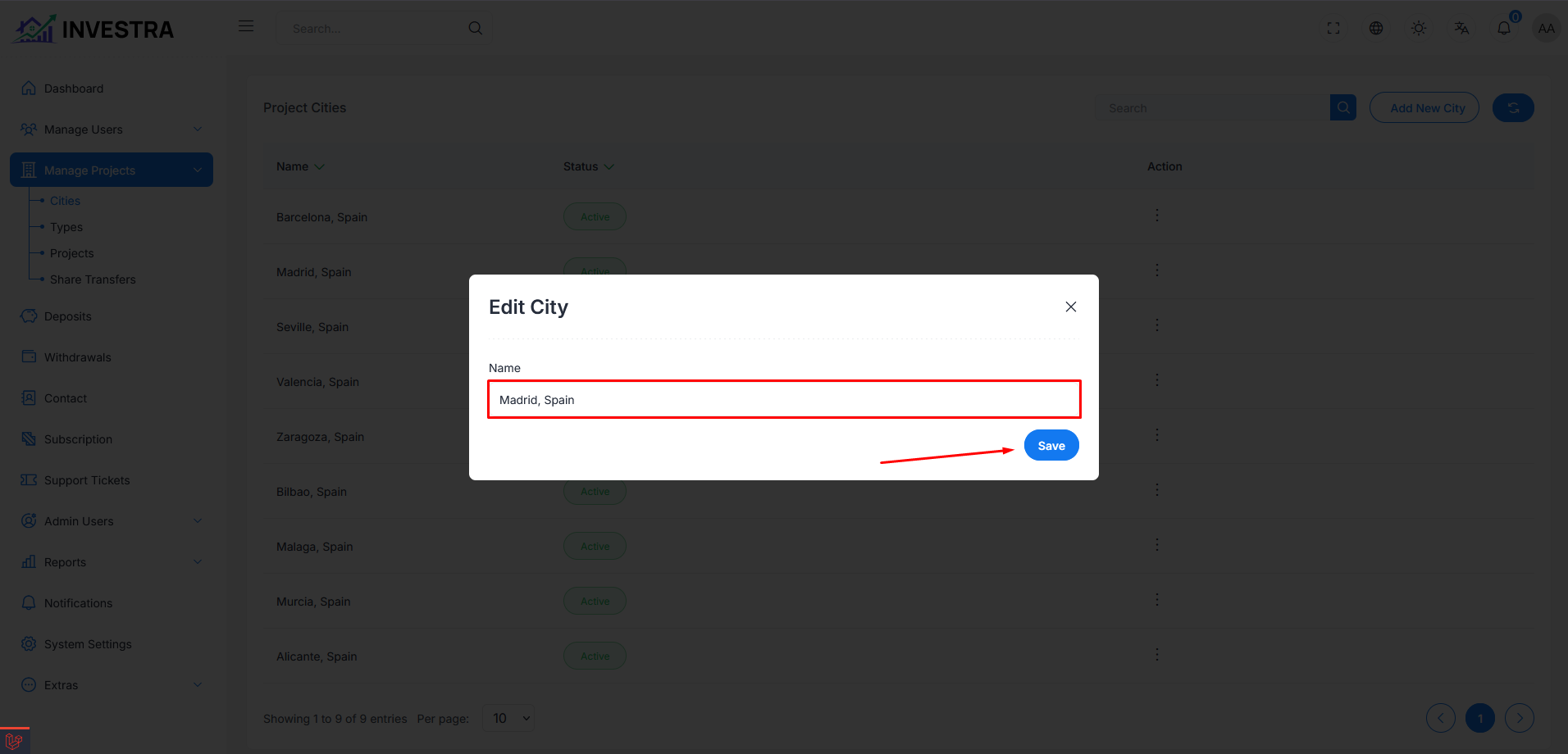
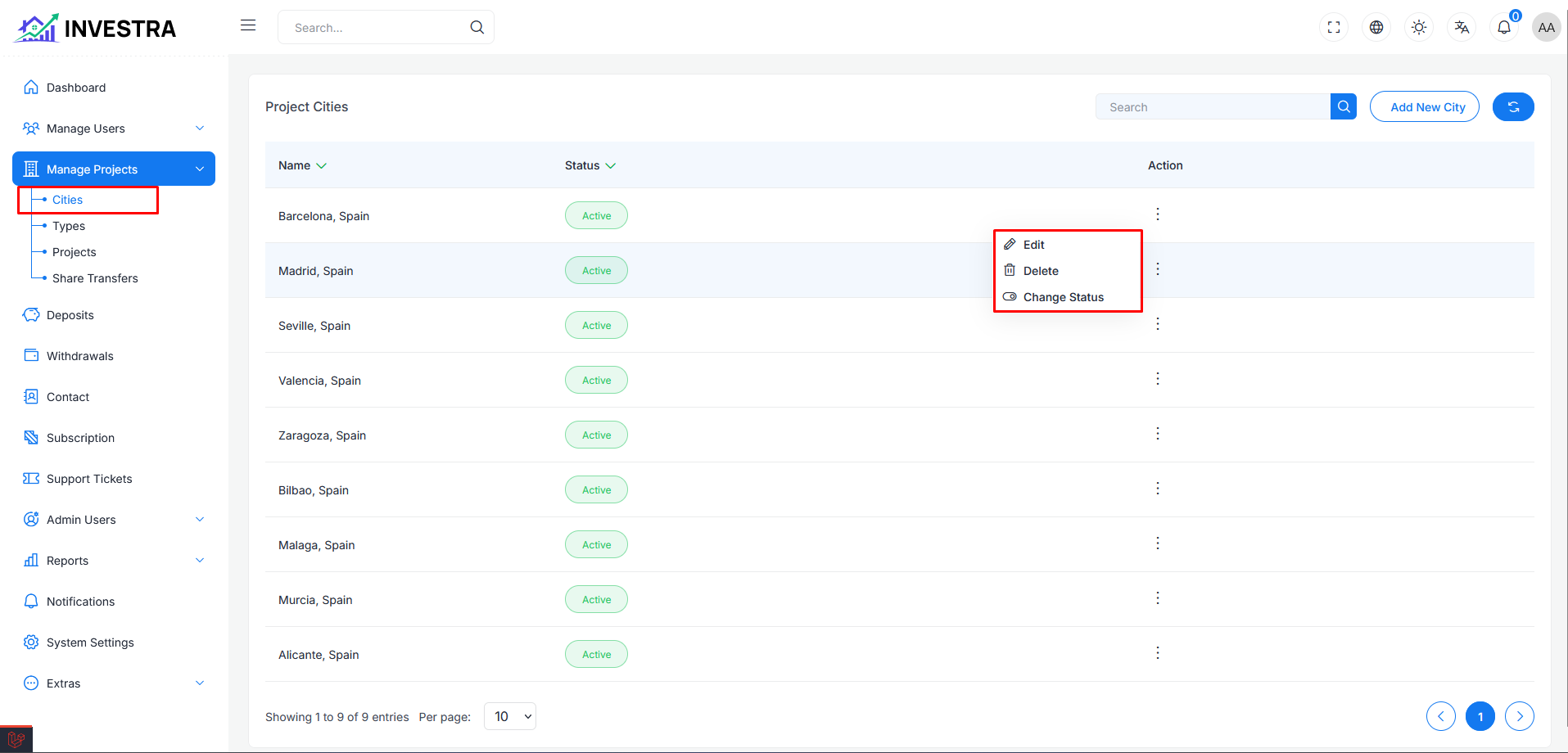
The Cities page displays all available city locations in a table format. You can access this section from the sidebar under Manage Projects → Cities.
Each city displays:
- Name: The name of the city (e.g., New York, Los Angeles, Chicago)
- Status: Shows whether the city is Active or Inactive
- Action: Options to manage each city
Page Controls
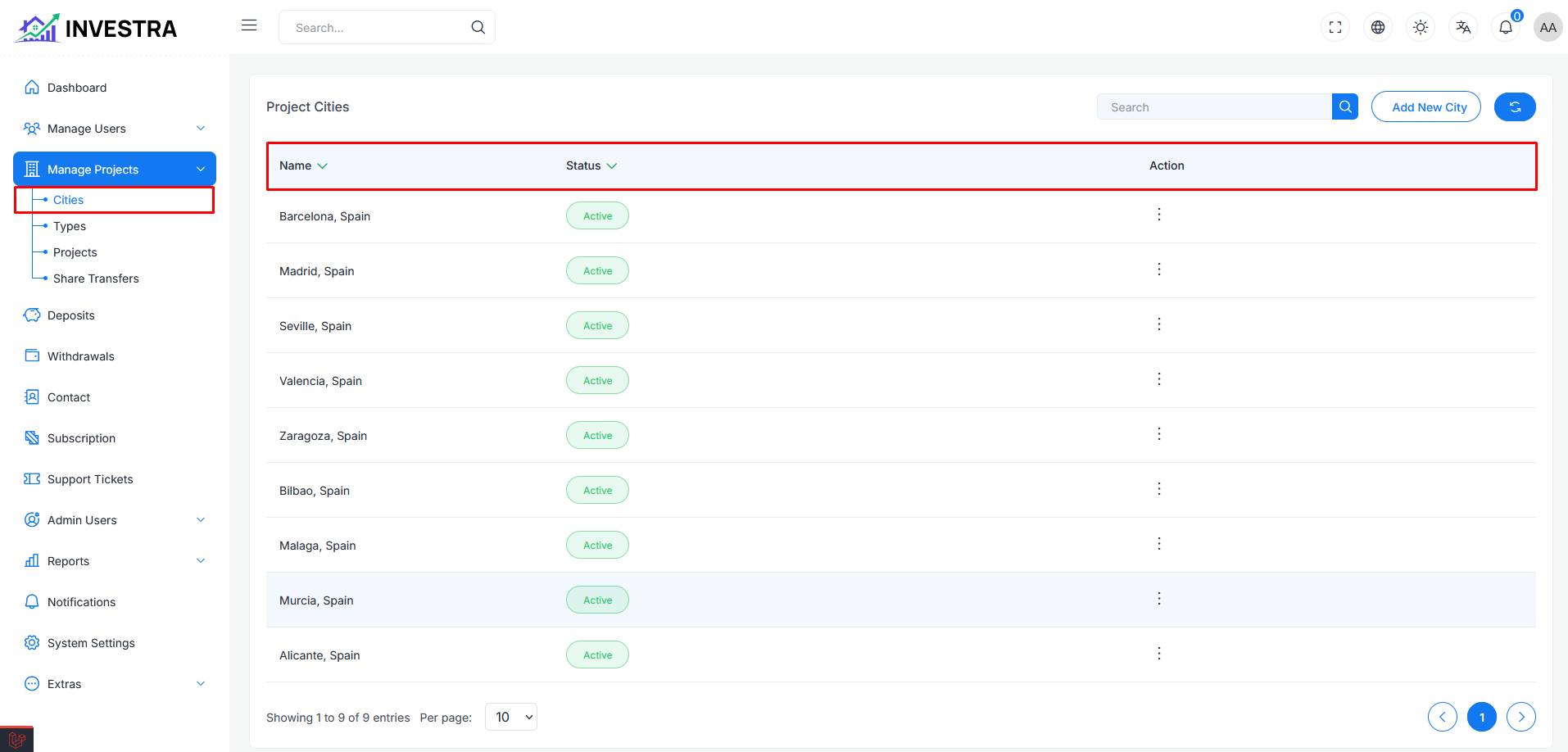
At the top of the page, you'll find the following controls:
- Search: Filter cities by name
- Add New City: Button to create a new city
- Refresh: Reload the cities list
Add New City
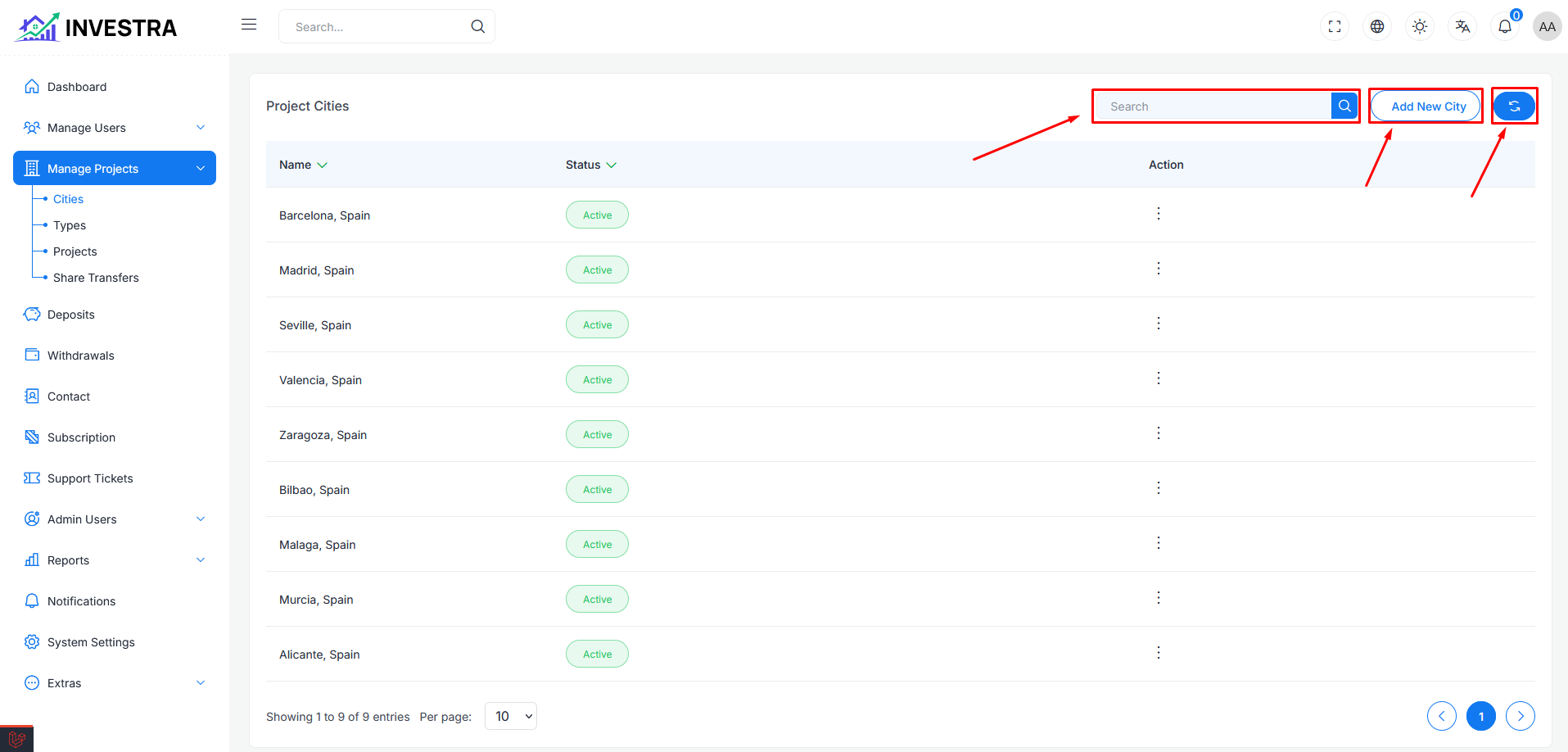
Click the Add New City button to open the creation modal.
Add New City Modal
The modal includes:
- Name Field: Enter the new city name
- Save Button: Create the new city
City Management Actions
Action Menu Options
Each city row includes an action menu (three dots) with the following options:
- Edit: Modify city details
- Delete: Remove the city from the system
- Change Status: Toggle between Active and Inactive status
Edit City
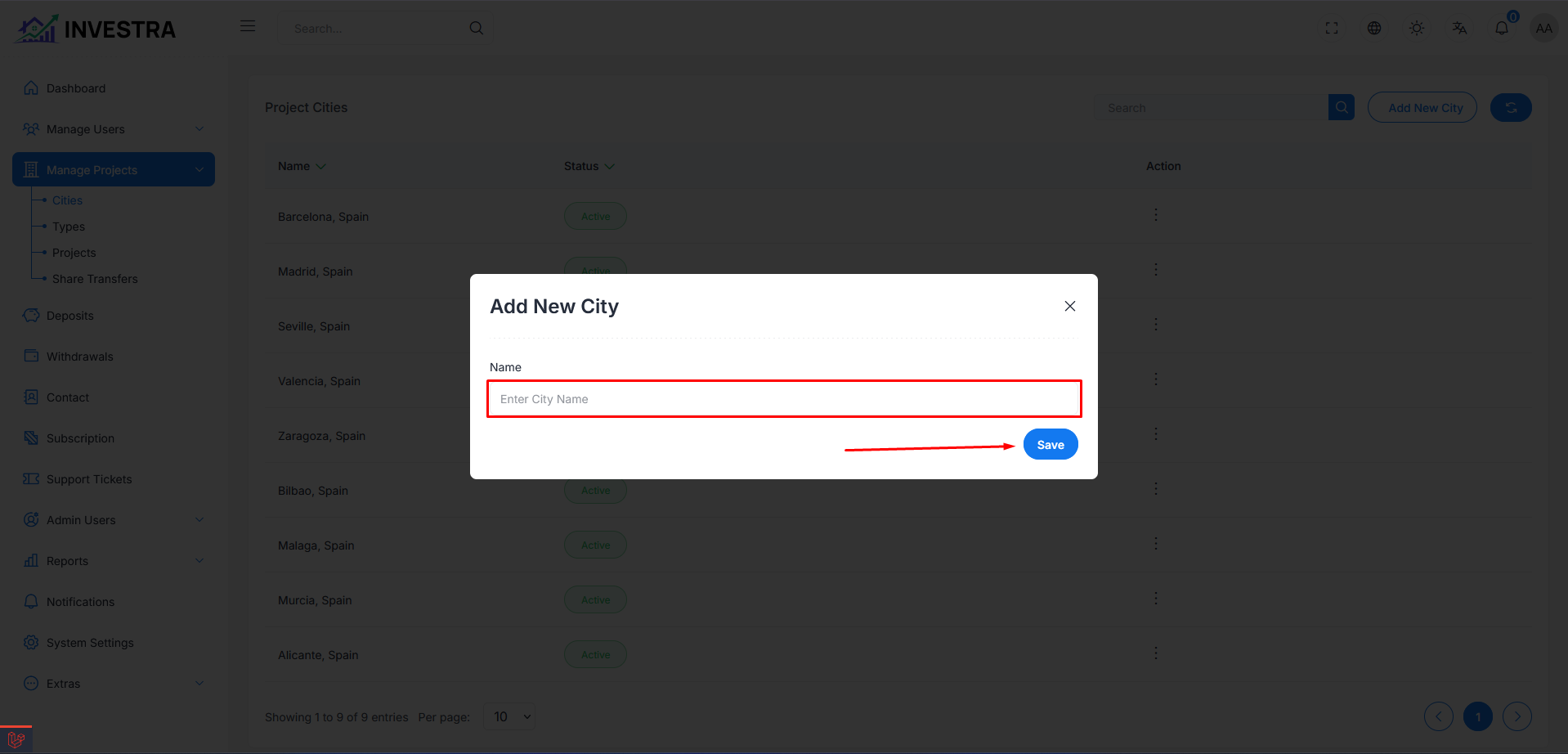
When selecting "Edit" from the action menu, a modal dialog opens allowing administrators to modify:
Edit City Modal
- Name Field: Update the city name
- Save Button: Apply changes to the city